

Microsoft Teams Rooms are designed to help you run Teams meetings more easily from a meeting room. You can use the touchscreen console to join scheduled meetings, start calls, share content and connect to the room’s camera, microphone and speakers.
This guidance is here to help you get started, understand the basic controls and find support with common issues that may come up during your meeting.
ℹ️ Microsoft Teams Rooms are replacing Zoom Rooms
As part of the Modern Work Programme migration to Microsoft 365, some existing Zoom Rooms are being gradually converted to Microsoft Teams Rooms. This means some meeting rooms will now use Teams instead of Zoom, while others will continue to use Zoom until they are converted.
To check which rooms are scheduled for conversion and which rooms have already been completed, view the full room list on the MWP Information site.
Get a quick look at the in-room poster here.
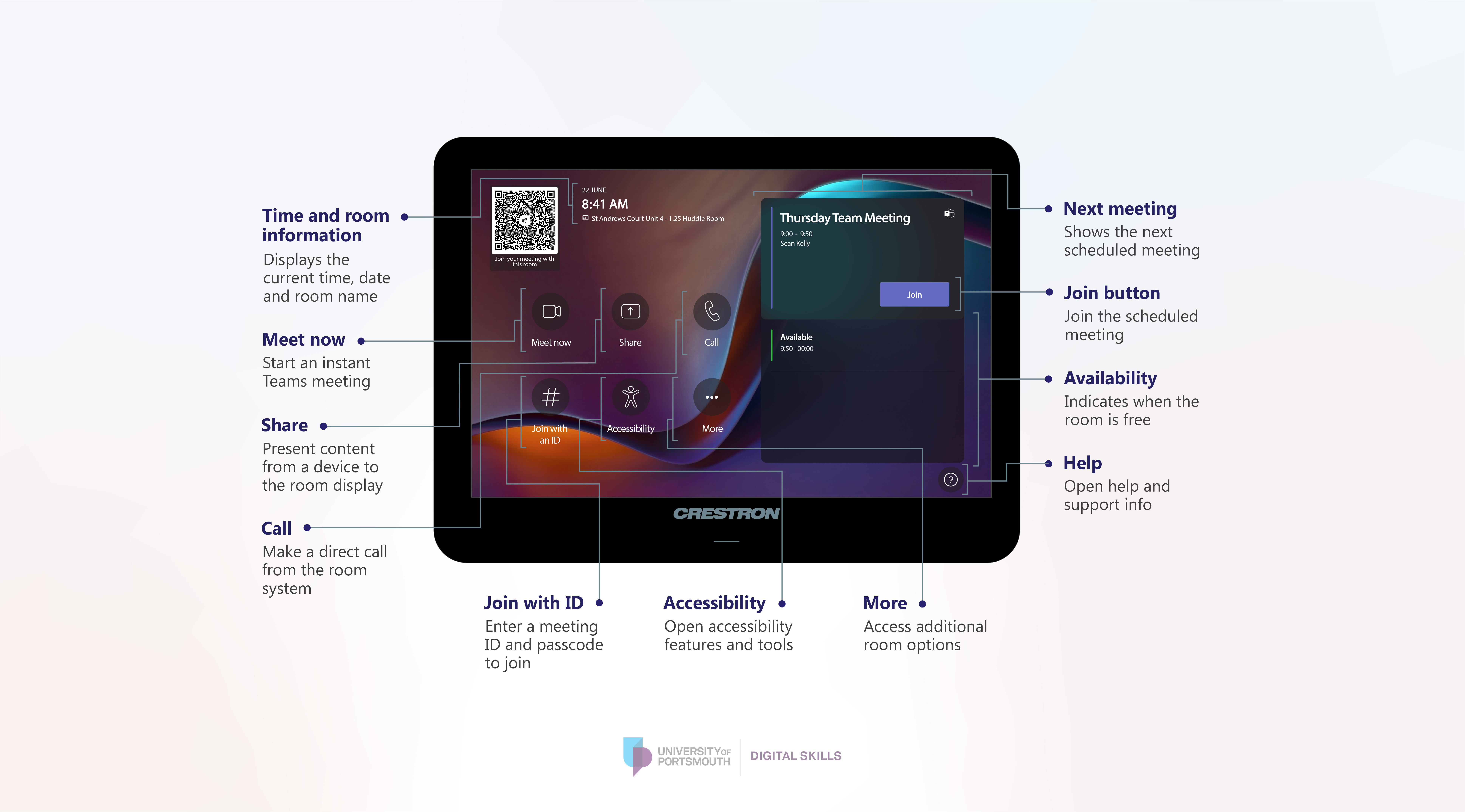
Room screen
The room screen is what you will usually see before joining or starting a meeting. It shows the room calendar, upcoming meetings and the main options for joining a meeting, starting a new meeting or sharing content
Note: To view an image in more detail, right-click it and select Open image in new tab. You can then zoom in for a closer look.
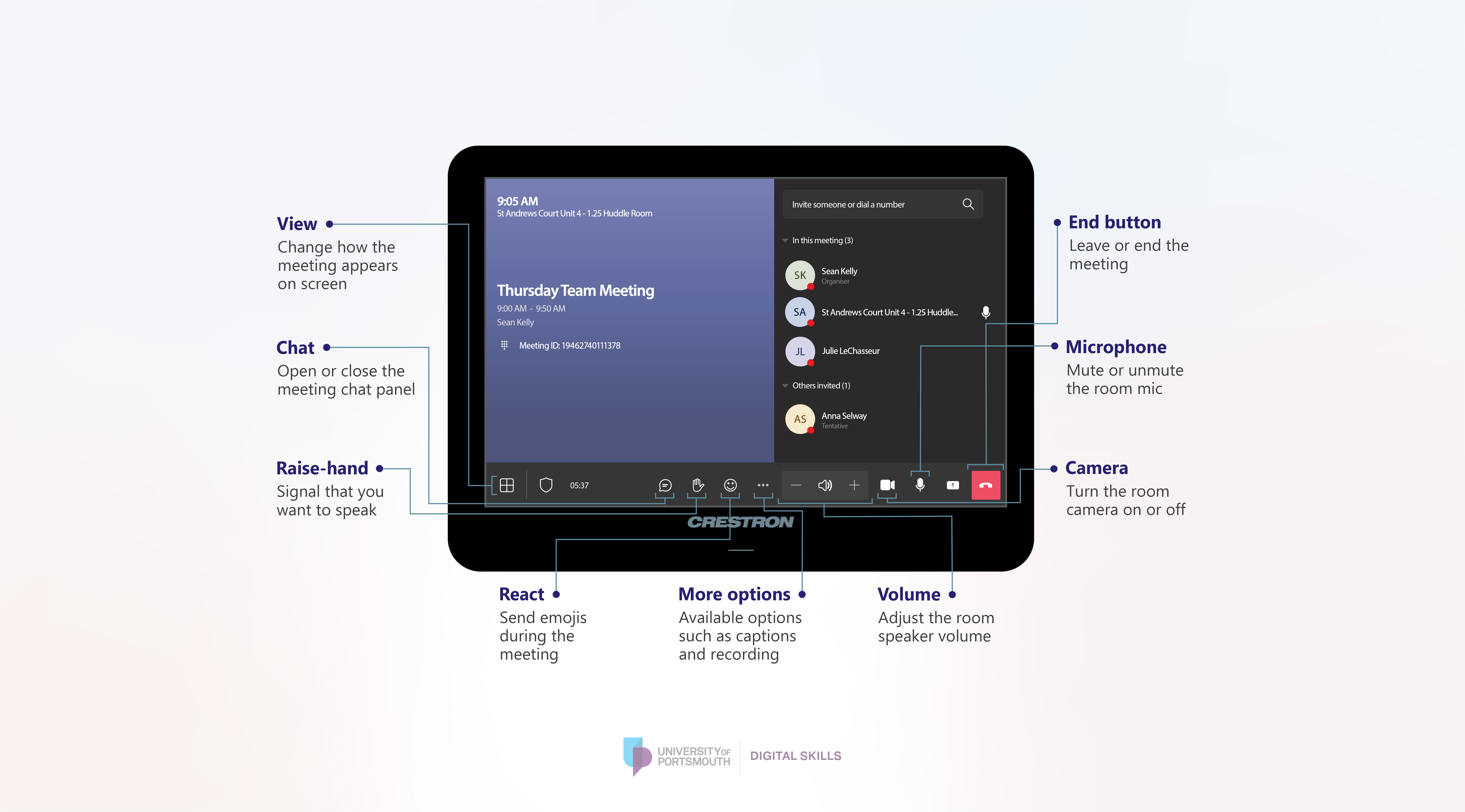
Meeting screen
The meeting screen appears once you are in a Teams meeting. It includes the main meeting controls, such as mute, camera, share, participants, chat, layout options and leaving the meeting.
Note: To view an image in more detail, right-click it and select Open image in new tab. You can then zoom in for a closer look.
Joining and starting meetings
Expand the sections below to view the instructions and additional information
Join a scheduled Teams meeting
Use these steps when your meeting has already been booked and the Microsoft Teams Room has been added to the meeting invite.
- Schedule your meeting in Outlook or Teams.
- Add the meeting room in the Add a room or Location field.
- Make sure the meeting includes a Teams meeting link.
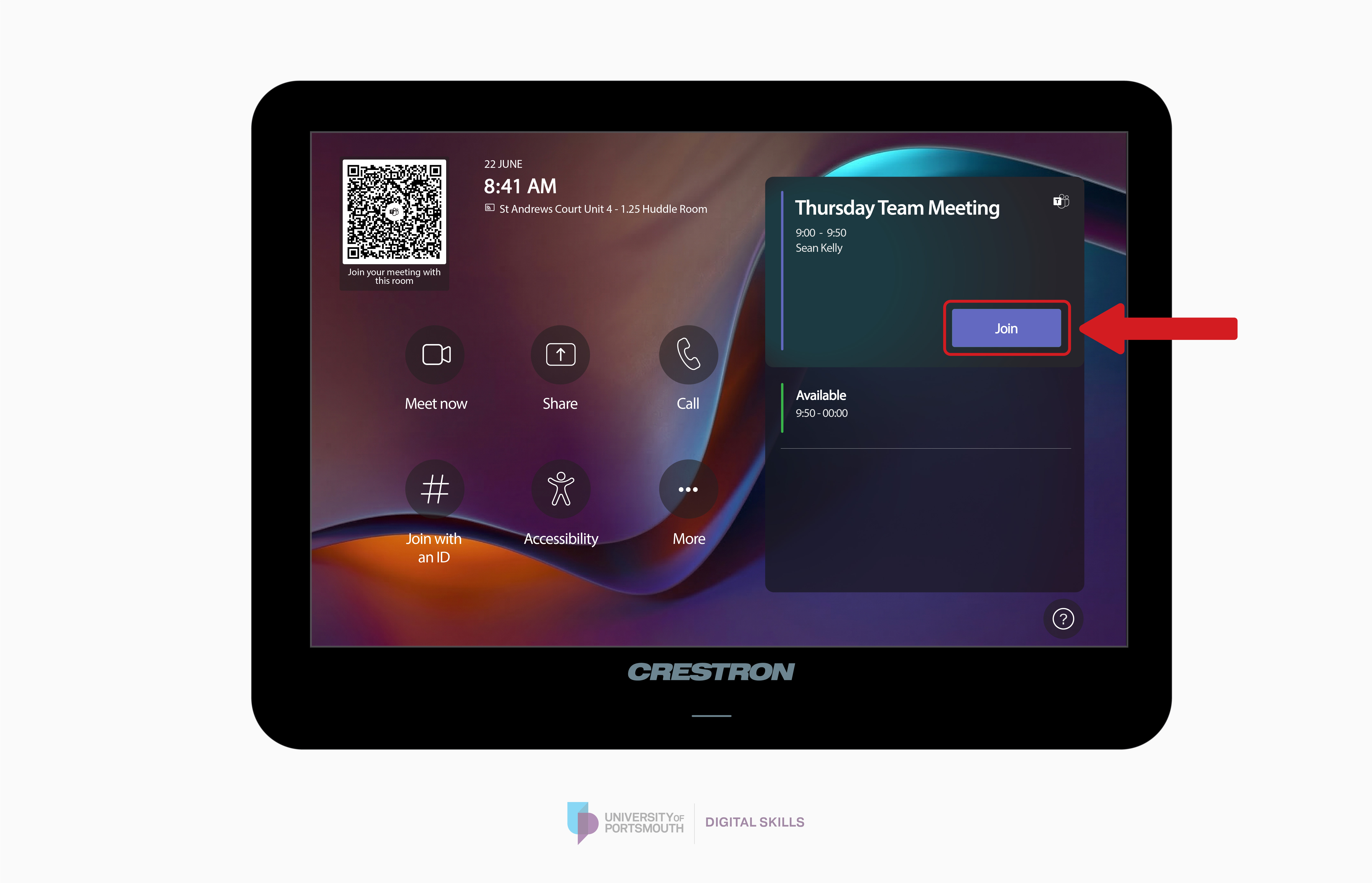
- When you arrive in the room, the meeting should appear on the room display and on the touchscreen console.
- Tap Join on the touchscreen console to enter the meeting.
- Once joined, use the room microphone, camera and speakers for the best meeting experience.

Start an instant meeting
Use these steps when you want to start a new Teams meeting directly from the room.
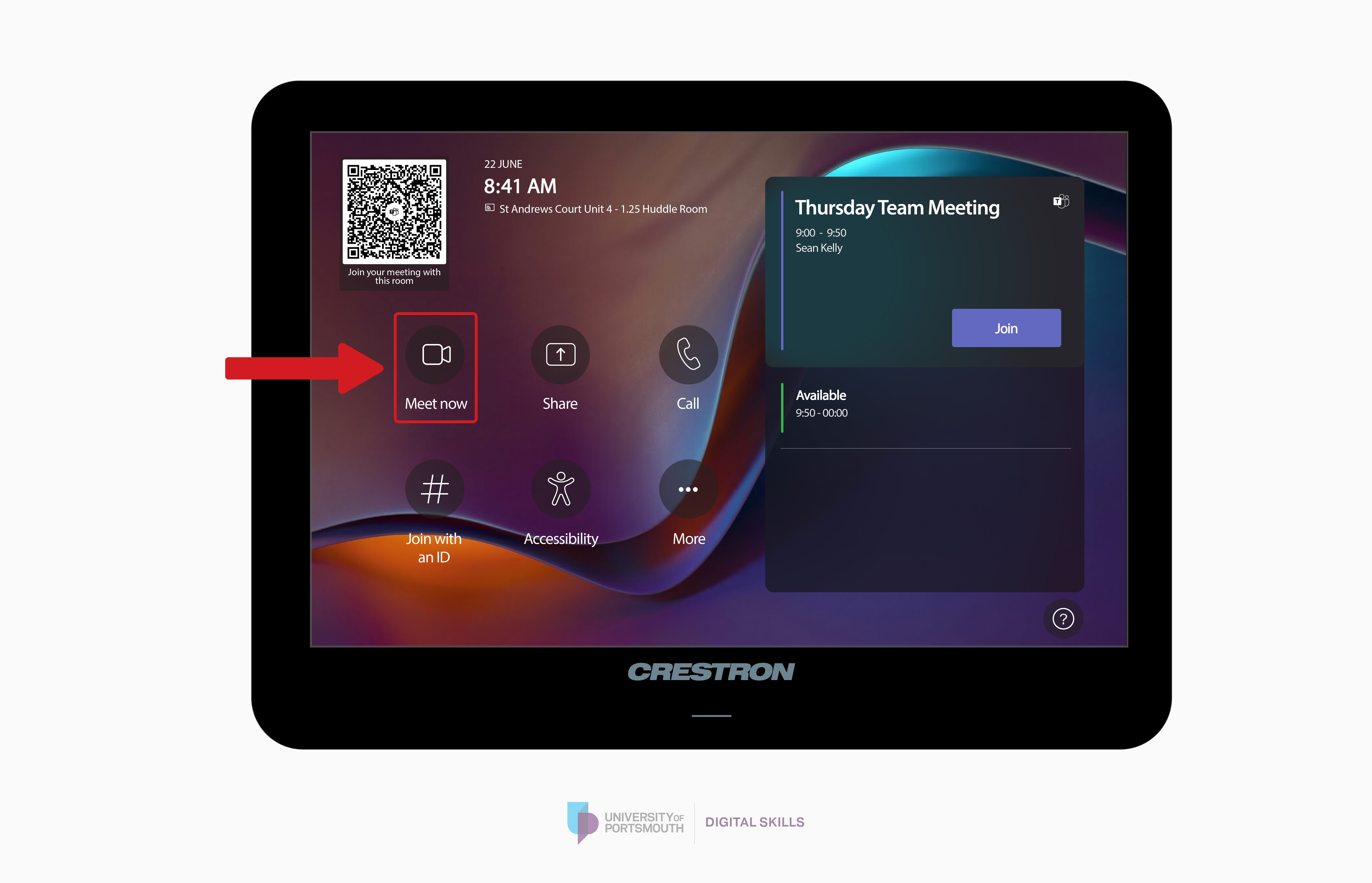
- On the touchscreen console, tap Meet now.
- Use the on-screen keyboard to search for the people you want to invite.
- Select the attendees you want to add.
- Start the meeting from the console.
- Once the meeting has started, use the meeting controls to manage the microphone, camera, volume and layout.

Add someone to an active call
Use these steps when the meeting has already started and you need to invite another person.
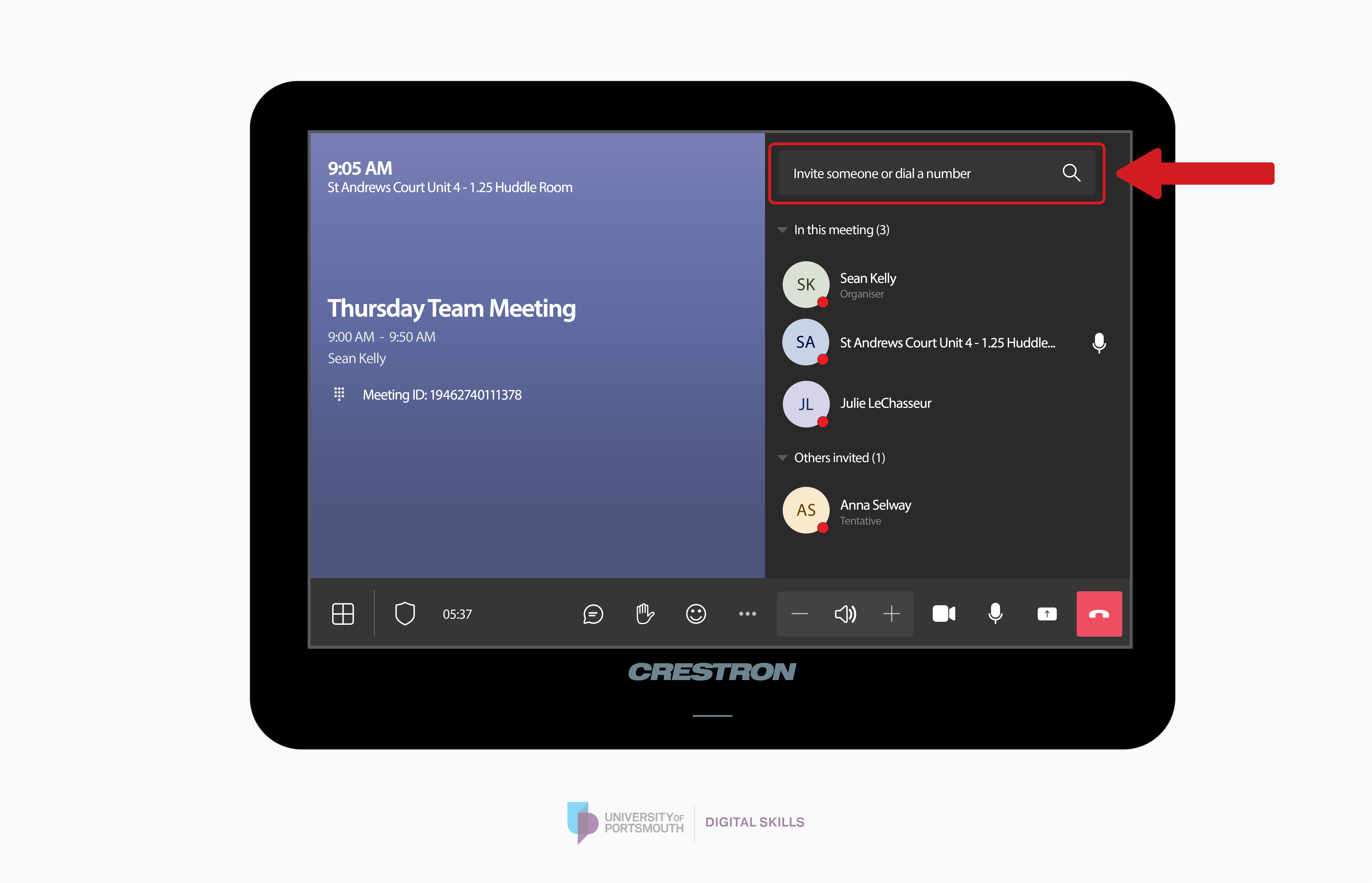
- During the call, tap Invite someone or dial a number on the touchscreen console.
- Use the on-screen keyboard to search for the person by name.
- Select the correct person from the search results.
- Add them to the meeting.
- The person will receive an invitation to join the active call.

Bring an existing meeting into the room
Use these steps if you have already joined a Teams meeting on your laptop but want to use the room display, speakers, microphone and camera.
- Join the Teams meeting from your laptop.
- Open the People panel in the meeting.
- Search for the room name.
- Add the room to the meeting.
- Accept the incoming meeting invitation on the room’s touchscreen console.
- Once the room has joined, mute your laptop microphone and speakers to avoid echo.
- Continue using the room system for audio and video.
Share content using the in-room cable
Use these steps when you want to present from a laptop using the cable provided in the room.
- Connect your laptop to the HDMI cable or Crestron Puck provided on the desk.
- On the touchscreen console, tap the Share icon from the bottom row.
- Select HDMI from the list of input options. Your laptop screen should now appear on the room display.
- If your screen does not appear, check that the cable is securely connected.
- When you have finished presenting, disconnect the HDMI cable or stop sharing from the console.
Using room controls during a meeting
Expand the sections below to view the instructions and additional information
Change the meeting layout
Use this when you want to change what appears on the room display.
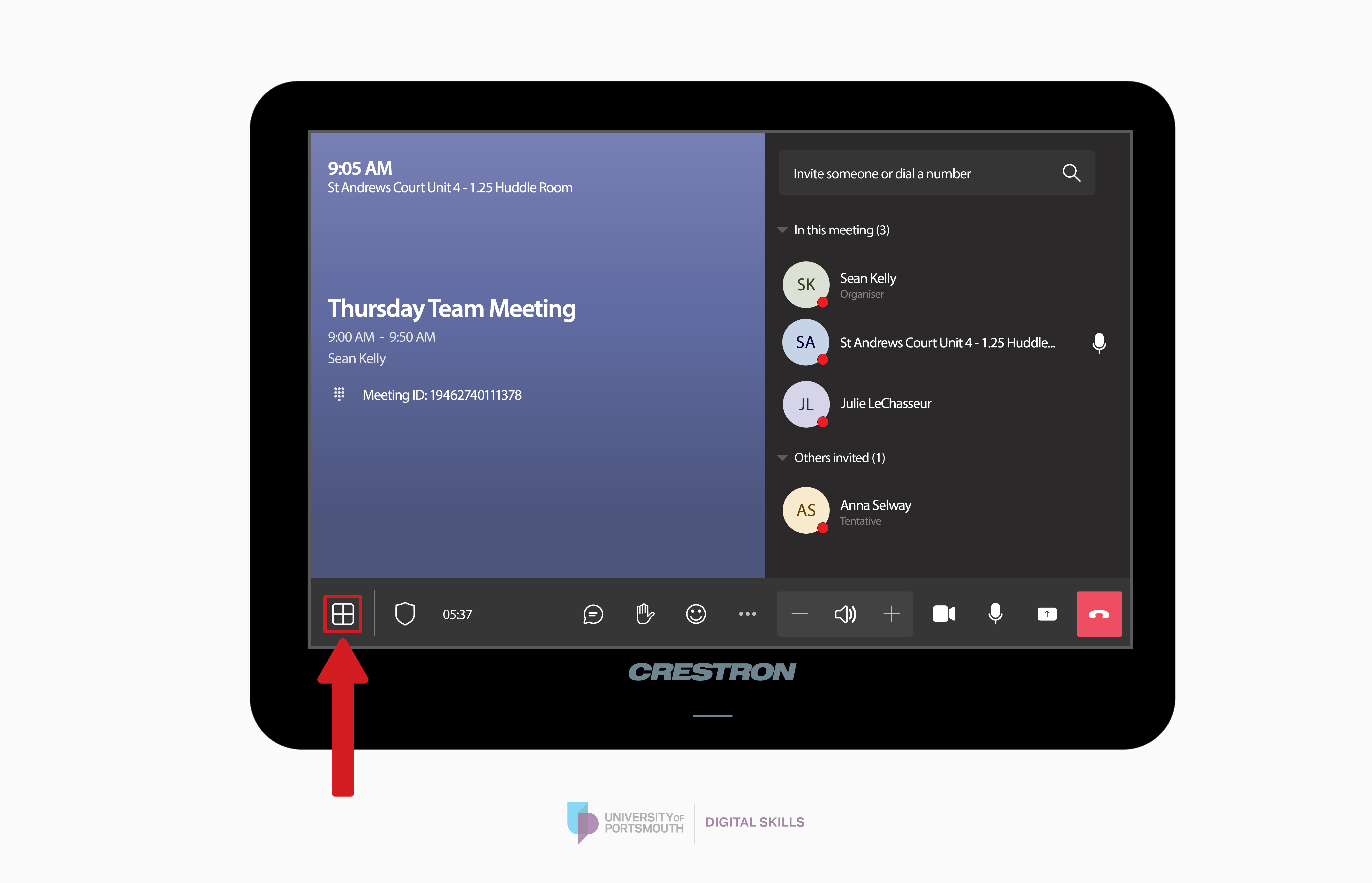
- During the meeting, tap View or the layout option on the touchscreen console.
- Choose the layout that best suits the meeting.
- Use a content-focused layout when someone is presenting.
- Use a gallery or speaker-focused layout when the meeting is mainly discussion-based.
- You can change the layout again at any point during the meeting.

Turn captions on or off
Use this if attendees would benefit from live captions during the meeting.
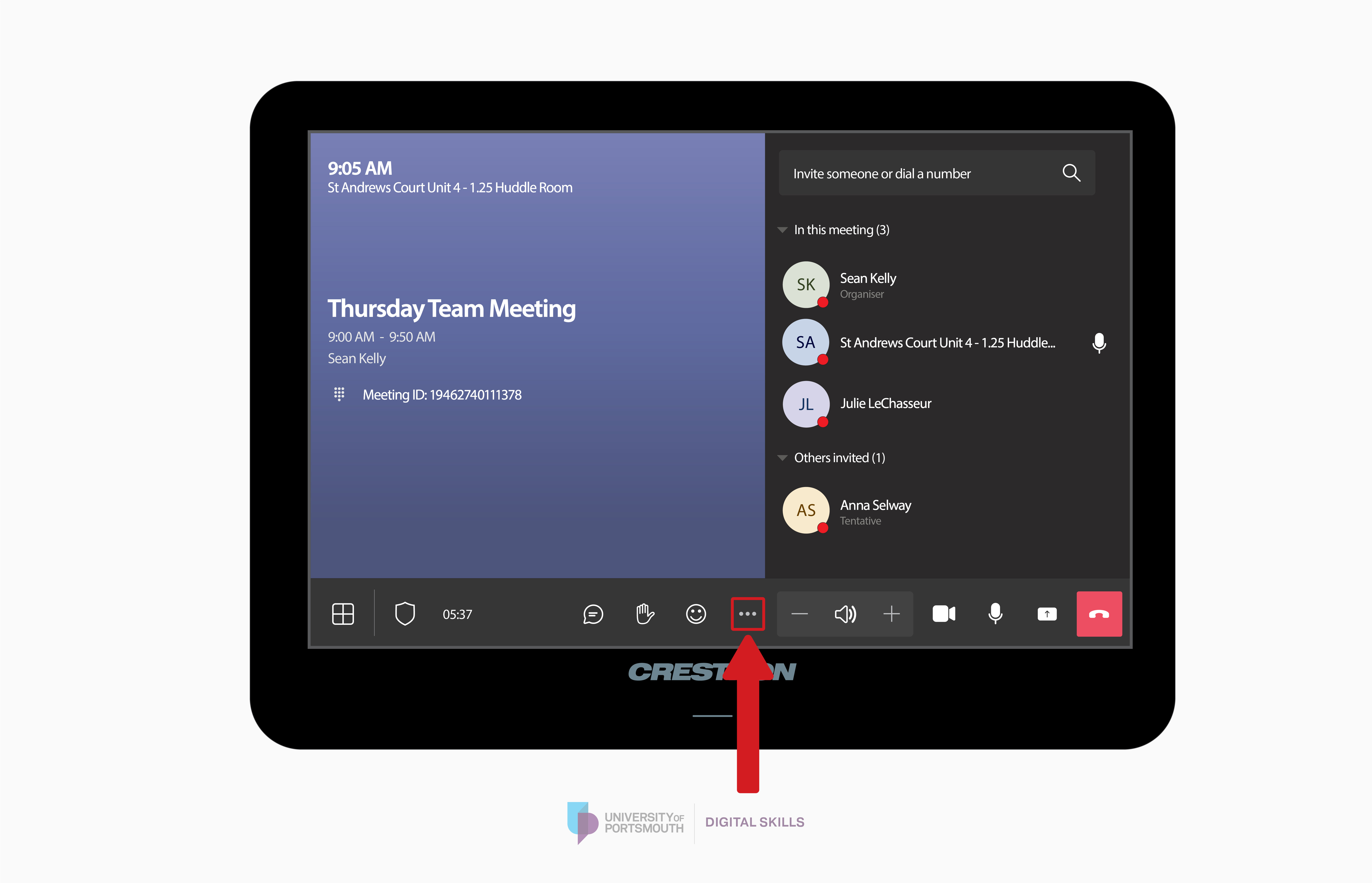
- During the meeting, tap More options.
- Select the captions option, if available.
- Captions should appear on the meeting display.
- To turn captions off, return to More options and switch captions off.

Record a meeting
Only record a meeting when it is appropriate to do so and attendees are aware that the meeting is being recorded.
- During the meeting, tap More options.
- Select the recording option, if available.
- Confirm that the meeting is being recorded.
- When finished, return to More options and stop the recording.
- The recording will be saved according to the meeting organiser’s Microsoft Teams settings.

Leave or end a meeting
Use the end button carefully, as the available options may depend on your role in the meeting.
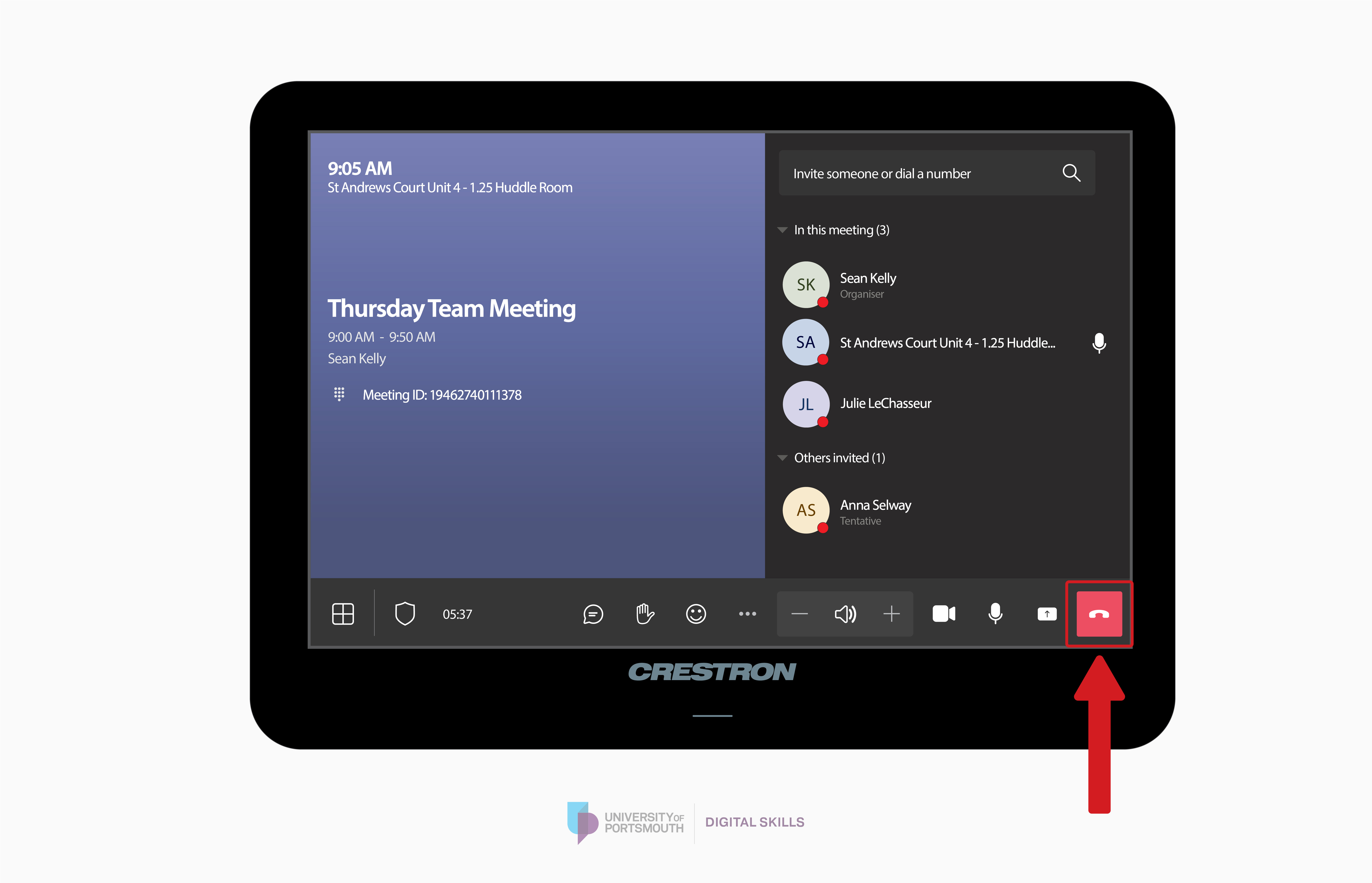
- Tap the red end button on the touchscreen console.
- Choose Leave if you only want the room to leave the meeting.
- Choose End meeting only if you are sure the meeting should end for everyone.
- Check that the room has returned to the home screen before leaving.

Troubleshooting
Expand the sections below to view the instructions and additional information
The meeting is not showing on the room screen
Use these checks if your scheduled meeting does not appear on the touchscreen console.
- Check that the correct room was added to the meeting invite.
- Check that the invite includes a Teams meeting link.
- Check that the meeting has not been cancelled or moved to another room.
- If the meeting was created or updated recently, wait a short moment for the room console to refresh.
- If the meeting still does not appear, join the meeting from your laptop.
- Open the People panel in Teams and add the room to the meeting.
- Accept the incoming meeting invitation on the room console.
- Contact Service Desk if the issue continues.
The room has not joined the meeting
Use these checks if you tap Join but the room does not enter the meeting.
- Wait a few moments, as the room may take time to connect.
- Check whether any message appears on the touchscreen console.
- Try tapping Join again.
- If the room still does not join, restart the meeting from your laptop and add the room from the People panel.
- Contact Service Desk if the room cannot join any Teams meeting.
People cannot hear the room
Use these checks if remote attendees cannot hear people in the room.
- Check that the room microphone is not muted.
- Make sure people are speaking clearly and close enough to the room microphone.
- Check whether any other device in the room is causing audio issues.
- If you have joined from a laptop as well, mute your laptop microphone.
- Leave and rejoin the meeting if the issue continues.
- Contact Service Desk if the microphone still does not work.
The room cannot hear remote attendees
Use these checks if the room cannot hear people who have joined remotely.
- Check the room volume using the touchscreen console.
- Make sure the room speakers are not muted.
- Ask remote attendees to check that they are not muted.
- If you have joined from a laptop as well, make sure the room is being used for the main audio.
- Leave and rejoin the meeting if needed.
- Contact Service Desk if sound still does not come through the room speakers.
There is echo or audio feedback
Use these checks if you hear echo, feedback or repeated audio.
- Check whether anyone in the room has joined the meeting from a laptop.
- Ask anyone using a laptop in the room to mute their microphone.
- Ask them to mute their laptop speakers as well.
- Use the room system as the main microphone and speaker.
- If someone needs to stay joined on their laptop, they should use it for viewing or presenting only, not for audio.
The camera is not working
Use these checks if the room camera is not showing.
- Tap the camera button on the touchscreen console.
- Check whether the camera is switched off.
- Make sure the camera is not physically blocked.
- Check whether the meeting layout is hiding the camera view.
- Leave and rejoin the meeting if needed.
- Contact Service Desk if the camera image is frozen, unavailable or not displaying correctly.
Content is not showing on the room display
Use these checks if your laptop content does not appear on the room screen.
- Check that the HDMI cable is firmly connected to your laptop.
- On the touchscreen console, tap the Share icon.
- Select HDMI from the list of input options.
- Check your laptop display settings.
- If using Windows, press Windows key + P and choose Duplicate or Extend.
- Try disconnecting and reconnecting the HDMI cable.
- Contact Service Desk if the content still does not display.
The wrong screen is showing when presenting
Use this if the room display is showing the wrong laptop screen or only showing part of your desktop.
- Check your laptop display settings.
- If using Windows, press Windows key + P.
- Choose Duplicate if you want the room screen to show the same thing as your laptop.
- Choose Extend if you want to use the room screen as a second display.
- Move the content you want to present onto the correct screen.
The touchscreen console is not responding
Use these checks if the room console is frozen or not responding to touch.
- Wait a few moments and try again.
- Check whether the room display is still responding.
- Do not unplug any room equipment unless instructed by Service Desk.
- If the console remains unresponsive, contact Service Desk.
- Use your laptop to continue or start the meeting if needed.
Good practice for hybrid meetings
Use these tips to make the meeting better for people joining remotely.
- Speak clearly and face the room camera where possible.
- Avoid side conversations in the room.
- Repeat in-room questions so remote attendees can hear them.
- Use the room microphone rather than a laptop microphone.
- Share content through the room system so everyone can see it.
- Mute the room when there is background noise.
- Check the chat regularly for questions or comments from remote attendees.
- Leave the room ready for the next meeting when finished.
Not finding what you're looking for?
If you cannot find the answer you are looking for, or require further help with an issue, please contact the Service Desk for support and guidance.
Enable University alerts
Turn on notifications for critical updates like closures, safety alerts, and urgent service disruptions.