

Image

Need to print something for your course? PaperCut lets you send documents to University printers from a web browser, a University computer or your own device.
Printing is pay as you go, so you will need enough credit in your PaperCut account before you print. Your document will not print immediately. It is held securely for up to 24 hours and only prints when you release it at a campus printer using your student card or University sign-in details.
There are two easy ways to print from your own device. You can use Web Print to quickly upload and print a document through your browser. Or, for more printing options, you can install the University print queue and print directly from your device’s usual print menu.
| Printing method | Best for | What you need |
|---|---|---|
| Web Print | Quick or occasional printing using standard settings | A web browser and the document you want to print |
| Print from your device | Regular printing with more control over your settings | The University print queue and a VPN connection |
Expand the sections below to view the instructions and additional information
Web Print is a quick way to print without installing anything on your device. Sign in to PaperCut through your browser, upload your document and then collect it from a campus printer. You can use Web Print from a computer, phone or tablet, whether you are on or away from campus.
Web Print supports Microsoft Office documents, PDFs and images. Your document will be printed on A4 paper in portrait orientation and double-sided. These settings are applied automatically and cannot be changed when using Web Print.
Watch the video below for a step-by-step guide to printing on campus using Web Print.
Installing the University print queue is a good option if you regularly print from your own laptop, phone or tablet. It lets you print using the normal print menu on your device and gives you more control over settings such as paper size and colour.
The print queue is available for Windows, macOS. Chromebooks, Android, and iPhone or iPad. You will need to connect to the University VPN whenever you print this way, including when you are on campus.
Once you have sent a document to print, PaperCut gives you everything you need to manage the rest of the process. You can release and collect your document from a campus printer, check or add print credit, view printing costs, switch to single-sided printing and find your nearest printer.
Expand the sections below to view the instructions and additional information
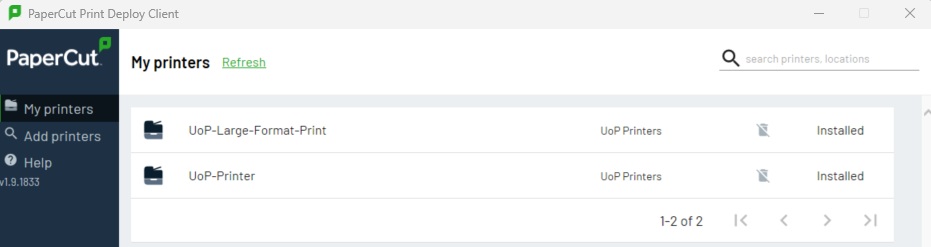
You can also print directly from open-access University computers. The UoP-Printer queue should be added automatically after you sign in and authenticate through the PaperCut Print Deploy window. Do not try to add the University print queue manually.
Open the document you want to print.
Once you have sent your document to print, the final step is to release it from a campus printer. Your document will not print straight away, so you can choose when and where to collect it. It will stay securely in your print queue until you sign in at a University printer.
Do not worry if you do not have your student card with you. You can still sign in and collect your document.
Remember to release your document within 24 hours. Any documents left in your print queue after this time will be cancelled automatically.
Printing on campus is paid for using credit from your PaperCut account. Each time you print, the cost is taken from your available balance. You can use your PaperCut account to check how much credit you have left, add more credit and review your previous printing activity.
You can top up your print balance online whenever you need to.
Once your payment has been completed, you will receive a confirmation email. Keep this email as proof of purchase in case there is a problem with your payment or the credit does not appear in your account.
Your PaperCut account shows your current print balance and a record of your printing and credit activity. This can help you keep track of how much you have spent and when credit has been added to your account. To view your full transaction history, you may need to select Remove beside the current filter.
Unused print credit cannot be refunded. Try to add only the amount you expect to use, especially if you are nearing the end of your course or will not be using campus printers regularly.
The cost of printing depends on the paper size you choose and whether you print on one or both sides. Double-sided printing is usually the most cost-effective option and can also help reduce paper use.
| Paper size and setting | Cost |
|---|---|
| A4 single-sided | 6p |
| A4 double-sided | 9p |
| A3 single-sided | 12p |
| A3 double-sided | 18p |
The final cost will be shown before your document is printed and will be taken from your PaperCut balance. Printing prices may change, so check your PaperCut account for the latest cost.
All documents are printed double-sided by default. This uses less paper and is usually more cost-effective, particularly when printing documents with several pages.
You may need to print on one side only, for example, if you are printing a form, creating handouts with space for notes, or using each page separately for a presentation or display. For Microsoft Office documents, such as Word, PowerPoint and Excel, you can change this setting before printing from a University computer or through the University print queue installed on your device:
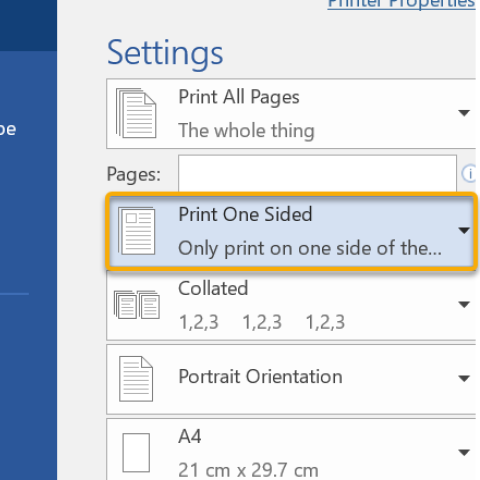
Web Print always uses A4 paper, portrait orientation and double-sided printing. These settings cannot be changed, so use a University computer or the installed print queue if you need to print a Microsoft Office document on one side only.
You can find standard University printers in several buildings across campus. Use the table below to find the most convenient location for you.
| Building | Printer location |
|---|---|
| Anglesea Building | Print Room, room 0.26 |
| Dentistry | Room 0.28 |
| Eldon Building | Digital Studios, room 1.125 |
| Library | Open Access IT Suite |
| Park Building | Basement IT Suite, room 0.15 |
| Portland Building | Open-access areas |
| Richmond Building | First-floor computer suite |
| St Andrew’s Court | Ground-floor reception |
| University Learning Centre | Reception |
If you need to print larger documents, such as posters, large-format printing facilities are also available in the Library and Eldon Building.
Need to print a poster, presentation or other oversized document? Large-format printers are available for work that needs to be printed in sizes up to A0. Use the guidance below to find the right printer, prepare your document and check the printing costs before you begin. These work separately from PaperCut but can be useful resources to many students.
Expand the sections below to view the instructions and additional information
The Library Open Access IT Suite provides large-format printing for professional-quality posters and other documents in sizes from A4 to A0. IT Helpers are available on-site to help you prepare, release and collect your print.
The suite is also open at weekends during term time and has longer opening hours than many other University buildings. This gives you more flexibility if you need to print your poster outside usual University opening times.
If you get stuck or need any support, you can visit a Student IT Help Adviser in the Library Open Access IT Suite to have your document released and printed.
The Eldon Digital Studios has three large-format printers and offers a wider choice of specialist papers and materials. Options may include tracing paper and gloss paper, making this service particularly useful for creative, design and presentation work.
Speak to a member of staff in the Digital Studios for the full list of available papers, materials and printing costs.
The Eldon Digital Studios is open:
Large-format printing is charged per sheet, with the cost depending on the size you choose. Use the table below to check the price before sending your document to print.
| Size | Cost per sheet |
|---|---|
| A4 | £2 |
| A3 | £3 |
| A2 | £5 |
| A1 | £7 |
| A0 | £10 |
Need to create a high-quality digital copy of a map, poster, artwork or another large original? The Large Format Scanning Service is available in the Map Library on the first floor of the University Library.
The service is managed by Library staff, so you do not need to operate the scanner yourself. Simply bring the item you want scanned and a USB flash drive for saving your file.
Most items are scanned at 300 dpi in 24-bit colour and saved as a JPEG. Other resolutions and file formats, including TIFF, may also be available depending on what you need.
| Specification | Details |
|---|---|
| Scanner | Contex CRYSTAL XL 42 |
| Optical resolution | 508 dpi |
| Maximum resolution | 800 dpi |
| Maximum media width | 44 inches (1,118 mm) |
| Maximum scan width | 42 inches (1,067 mm) |
| Maximum scan length | No scanner limit |
You can contact the Map Library in advance to check whether your material is suitable or discuss the scan settings you need:
All scanning must comply with copyright law. Library staff can advise you if you are unsure whether an item can be scanned.
If you need help using PaperCut, adding print credit, sending a document or collecting your printing, speak to a Student IT Help Adviser in the University Library.
Turn on notifications for critical updates like closures, safety alerts, and urgent service disruptions.