

Image

Turnitin Draft Coach is a writing support tool available in Microsoft Word. It gives you useful feedback while you are working on an assignment, helping you review your draft and make improvements before submitting your final version.
Draft Coach is designed to support your own judgement rather than change your work for you. Using it does not submit your draft to the Turnitin repository.
Watch the video for a quick introduction to Turnitin Draft Coach and the checks you can use while working on your assignment.
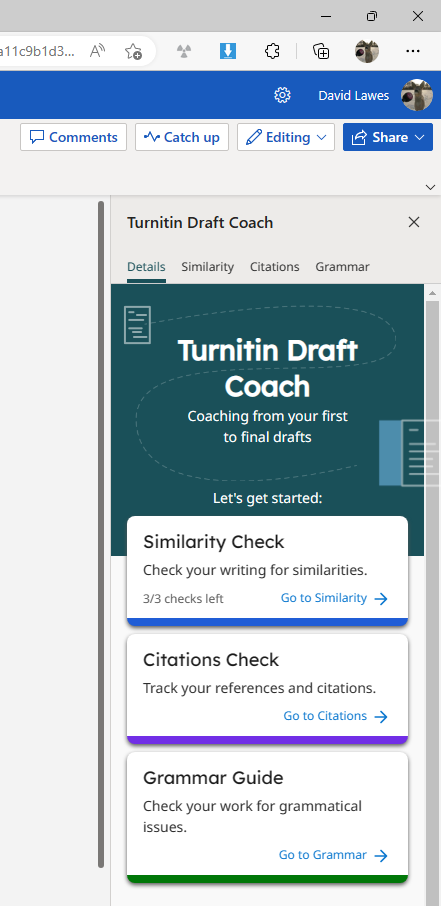
Compare your draft with other sources and review any matching text. This can help you identify where you may need to rewrite something, use a quotation or include a reference.
Check how sources have been cited within your work and identify references that may be missing or need further attention.
Find possible grammar issues and view suggestions to help you improve the clarity and accuracy of your writing.
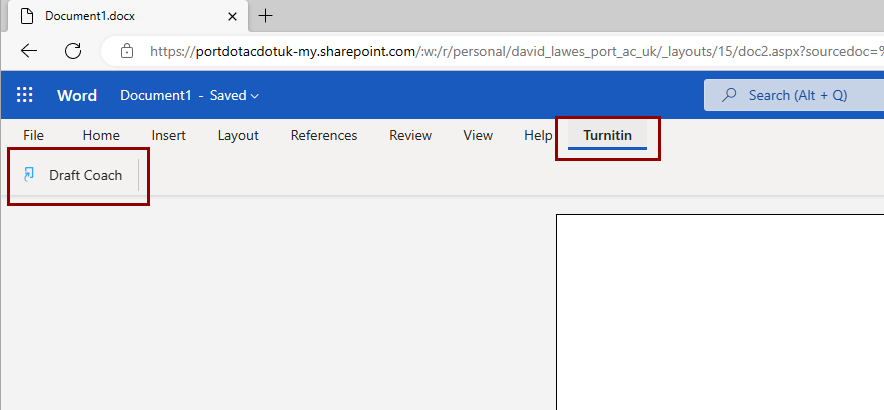
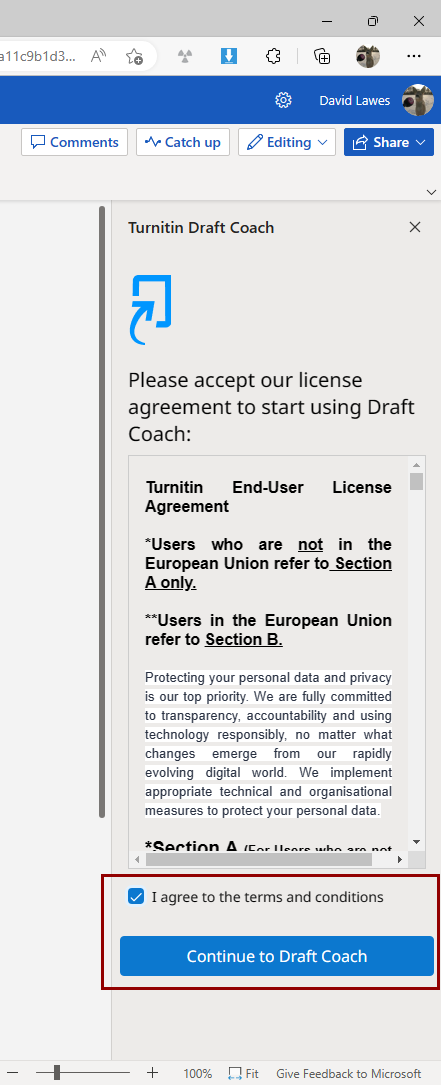
You only need to add Draft Coach the first time you use it. Follow the steps below in Microsoft Word online.
Turn on notifications for critical updates like closures, safety alerts, and urgent service disruptions.