

Image

This page is for staff who have been given a new standalone shared calendar in Outlook and need to move or recreate events from an older calendar they were previously using.
This guidance has been tested internally, but there may be scenarios not yet covered. If you have any questions or encounter issues, please contact the Digital Skills team using the details at the bottom of this page. Your feedback will help us improve the guidance for wider use.
You will be in this situation due to one of the following scenarios:
Google shared calendar migration
A shared calendar that was previously used in Google Calendar was migrated to Outlook. During migration, everyone who had access to that calendar received their own separate copy of it. This resulted in multiple duplicate calendars that are not linked and do not stay in sync. If one person adds or edits an event, other people do not see the change, meaning they cannot be used as a reliable shared calendar.
Personal calendars shared with others
A calendar was created inside one person’s Outlook account (a personal calendar) and then shared with colleagues. Although others could view or and have some editing ability for this calendar, one individual remained the owner. This means events are still tied to one person’s account which, becomes unreliable in the long-term, where ownership might need to such as when the current owner leaves.
If a new shared calendar has been created for you, this is the official calendar that everyone should use going forward.
In Outlook, a standalone shared calendar has a very specific meaning.
A true shared calendar:
- Is owned by a shared mailbox or a calendar-only mailbox
- Does not belong to one individual
- Is shared with people using permissions, not ownership
- Updates consistently for everyone
- Continues to work even if staff change roles or leave
A calendar is not a true standalone shared calendar if:
- It was created inside a personal Outlook account
- It appears under “My calendars” for one person
- It was shared with others but still has a single owner
These personal calendars can look like standalone shared calendars, which is where much of the confusion comes from, but they do not behave in the same way. Please refer to the MWP Info Site for more information on types of shared resources in Outlook.
Expand the sections below to view the instructions and additional information
The Outlook desktop app for Windows allows multiple mailboxes and calendars to be open at the same time. This means a shared calendar can be added alongside your own account, without replacing or hiding your personal mailbox or calendar.
After restarting Outlook, the standalone shared calendar will appear as a separate account in your calendar list. Your own account (showing your email address) will be listed first, with its calendars underneath. Below this, the shared calendar will appear with its own email address and its own list of calendars, clearly separated from your personal account.
Use this option when accessing Outlook through office.com. Opening a shared mailbox in the web allows you to manage the room’s calendar and settings, but it replaces your own mailbox in the current browser tab.
Important:
You can use Outlook in the browser for this process, but it will only work for 'Option A: Duplicating to a standalone shared calendar' listed below. If you need to use 'Option B', you must use the Outlook desktop app.
The shared mailbox opens in a new browser tab. Only one mailbox can be open per tab in the browser, so you will be viewing the shared mailbox rather than your own.
If the mailbox opens to email, select Calendar from the left navigation bar to view the standalone shared calendar.
Please note:
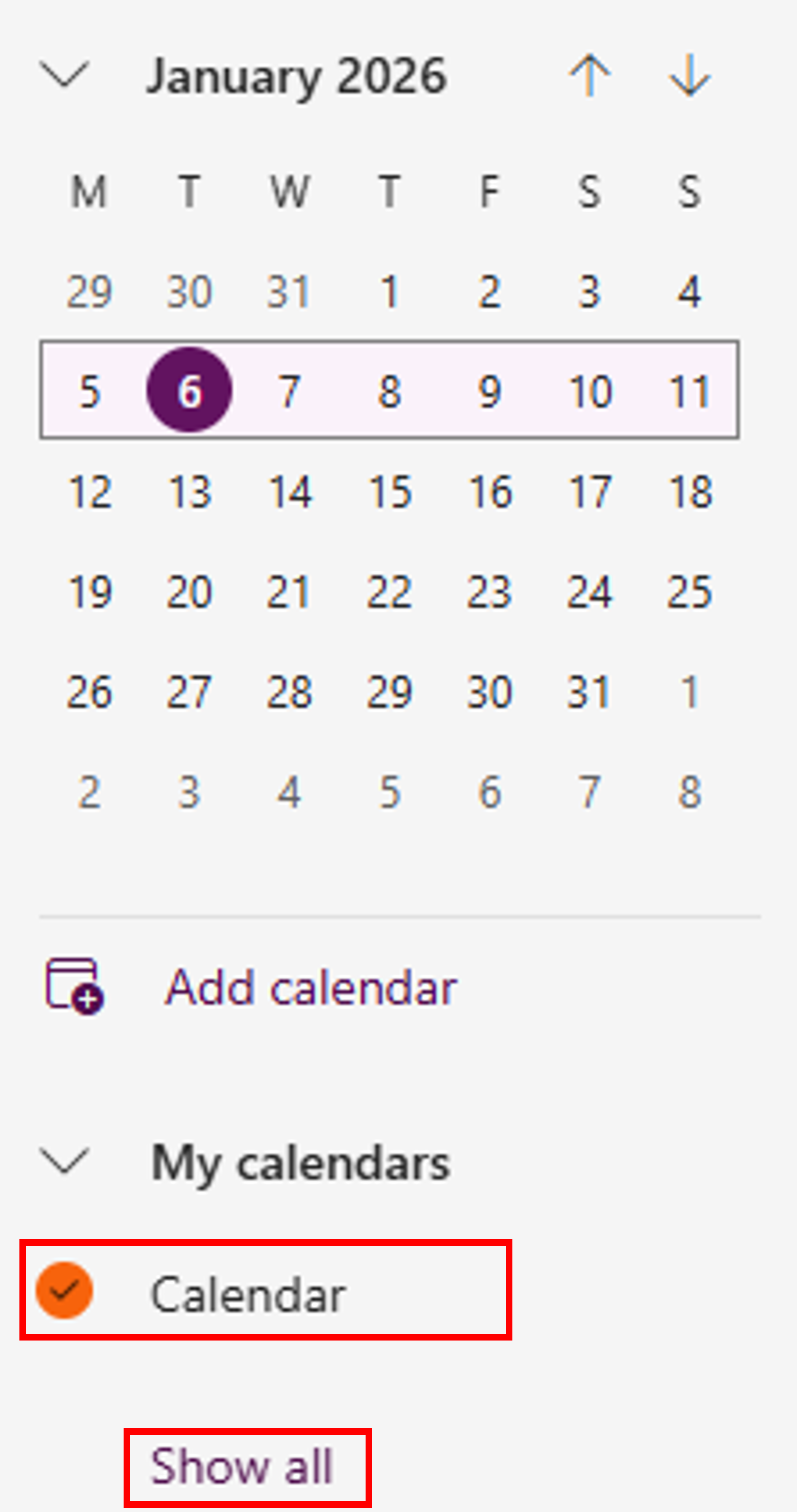
Expand the sections below to view the instructions and additional information
Important: This method works in both the Outlook desktop app and Outlook on the web.
When available, this is the preferred and safest option, as all event details are retained.
The standalone shared calendar appears under your own account in Outlook Calendar (for example, under People’s calendars).
You are listed as an owner of the standalone shared calendar.
The standalone shared calendar was added using Add calendar > Add from directory.
When a standalone shared calendar is added from the directory and appears under your own account, Outlook treats it as part of your normal calendar workspace.
Because the event remains within the same ownership context, Outlook can duplicate the event into the standalone shared calendar without removing any information.
This method only works for the primary standalone shared calendar of a shared mailbox or calendar-only mailbox.
It will not work for:
All event details are retained, including:
No re-entry of information is required after duplicating the event.
Before following the steps below, check whether the standalone shared calendar already appears under your own account in Outlook Calendar.
Open Outlook and go to Calendar
Look in the calendar list on the left-hand side
Expand your account if needed and check under People’s calendars
If you can already see the standalone shared calendar listed under your own account, you do not need to add it again. You can skip the steps below and move directly to the duplicate your event instructions further down the page.
If the standalone shared calendar does not appear under your own account, follow the steps below to add it from the directory.
Identify the event you want to duplicate to the shared calendar.
Important:
This method will only work in the Outlook desktop app. It does not work in Outlook on the web.
When using this method, most event details will be removed. You will need to re-enter these details manually after duplicating the event.
You are moving events from a calendar that belongs to your personal Outlook account into a new standalone shared calendar that belongs to a different account.
The standalone shared calendar appears under a separate account in Outlook Calendar, rather than under your own account (for example: Calendar ([email protected]) ).
The calendar you are moving events into is owned by a shared mailbox, not by you personally.
You can see and access the shared calendar, but it is not listed under your own account in the calendar list.
Outlook does not allow calendar events to change ownership. When you duplicate an event from your personal calendar into a standalone shared calendar owned by another account, Outlook cannot carry the event details across safely.
To allow the event to exist in the standalone shared calendar, Outlook keeps only the date and time and removes everything else.
The date and time will be kept
The following details will be removed:
After duplicating the event, you must manually re-enter all required details before saving or sending the event
Important:
If the original event included a Teams meeting, the link will be removed when the event is duplicated. Outlook does not allow an existing Teams meeting link to be embedded into a new event. You can either:
- Paste the original meeting link into the event description so attendees can still join.
- Create a new Teams meeting in the duplicated event to add a fully embedded Join button.
Once you have duplicated all required events into the new standalone shared calendar, you can tidy up the older calendar you were previously using. You may choose to remove the old calendar from your list, or delete events from it once you have confirmed they have been successfully added to the new shared calendar. If you are deleting events, it may be easier to do this as you go.
From this point onwards: Use the new standalone shared calendar only to create and manage events. This ensures events stay in sync for everyone and the calendar continues to work correctly over time.
If you would like to find out more about managing your standalone shared calendar going forward, review the Managing shared mailboxes and calendars section of our Working with Outlook guidance.
For more complex or scenario-specific queries, you may consider booking a 1:1 M365 WoW session. Make sure to select the How-to option.
Turn on notifications for critical updates like closures, safety alerts, and urgent service disruptions.